

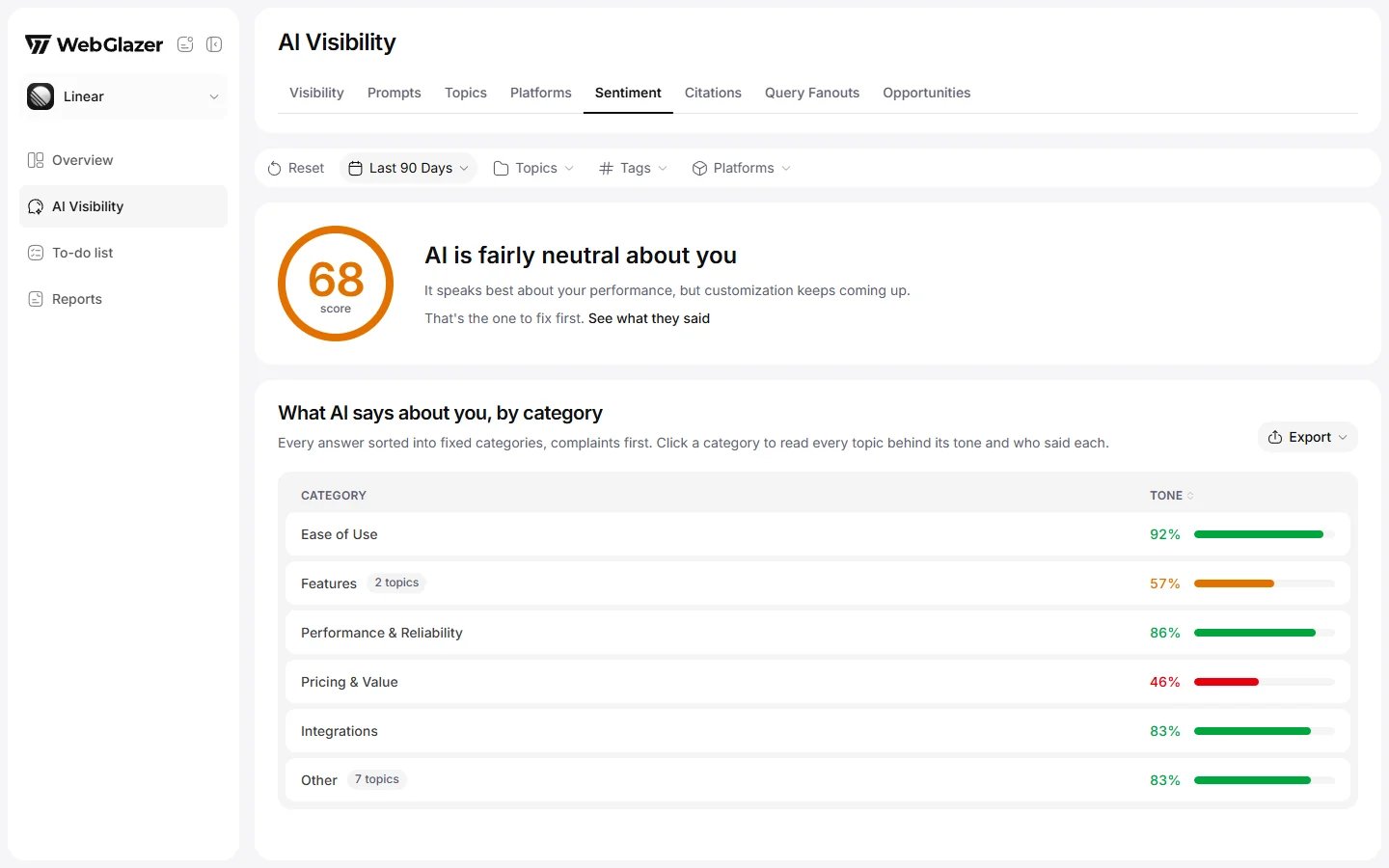
Sample data based on a linear.app project
Score and summary
The ring on the left is your Sentiment score, 0 to 100, colored by its band (positive, neutral or negative). It covers every run in the selected period, with the filters applied, and includes branded prompts. Next to it, WebGlazer writes a short read of where you stand:- The headline follows the trend first, then the band: “AI is warming up to you” or “AI has cooled on you a bit” when the score moved 3 points or more against the previous period of the same length; otherwise “AI speaks well of you”, “AI is fairly neutral about you” or “AI is critical of you right now”.
- The detail names the topic AI praises most and the complaint that comes up most, for example “It speaks best about your support, but pricing keeps coming up.”
- The action points at that complaint: “That’s the one to fix first.”, or “New in this period, so worth a look.” when it did not come up in the previous period. See what they said opens that category’s quotes.
- With fewer than 8 scored answers you also see “Still early, from just a handful of answers.”
What AI says about you, by category
“Every answer sorted into fixed categories, complaints first. Click a category to read every topic behind its tone and who said each.” Each row is one category: Features, Ease of Use, Pricing & Value, Support & Service, Performance & Reliability, Quality, Integrations, Trust & Reputation, Onboarding and Other.- Category: the kind of thing AI talked about.
- Tone: the category’s score from 0 (all bad) to 100 (all good) with a colored bar. Hover to see how many quotes were positive, neutral and negative. The score is (positive quotes + half of neutral quotes) ÷ all quotes × 100. Click the header to sort.
Reading the quotes
Click a category to open it. “Everything AI said in this category, every quote grouped by topic. The count is how many answers used that exact line.”- Each topic inside the category is its own section, with its number of quotes. The most-said topic is open first.
- Each quote row shows the Engine logos that said it, the Quote and its Tone (Positive, Neutral or Negative). Sort by Engine or Tone.
- “Not in the shown answer text” marks a quote taken from the engine’s full answer that is not in the part shown to you.
- Click a quote to open the prompt detail sheet on Raw data for that engine, with the quote highlighted in the answer. See Prompts tab.
Empty states
- “No sentiment yet” means no answer in the period has a sentiment score. It fills in after your next daily run.
- “No scores yet. Check back after your next run.” means categories exist but no score could be calculated yet.