

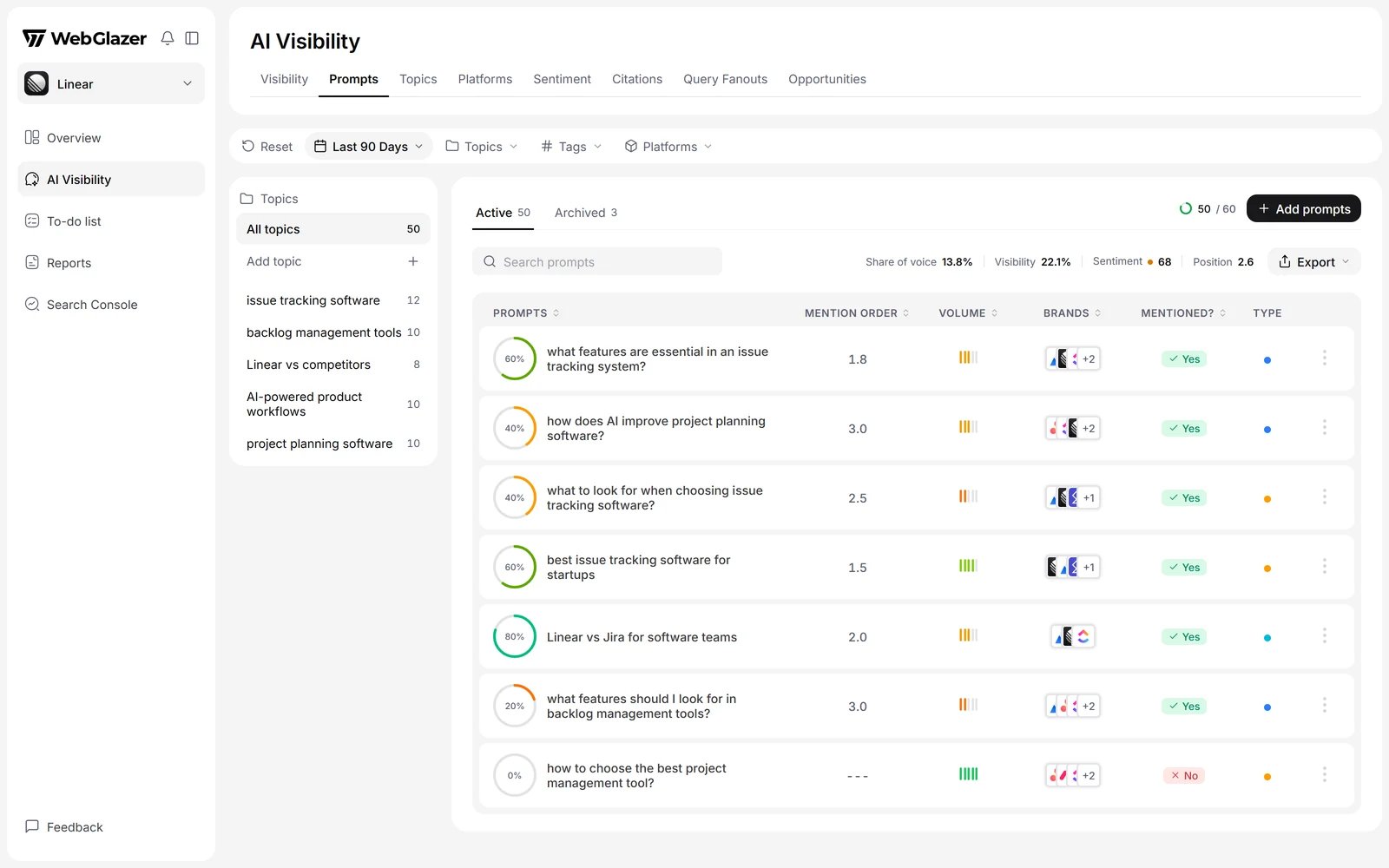
Illustration with sample data
Your numbers above the table
A line above the table shows your own brand across the prompts in view: Share of voice, Visibility, Sentiment (with a dot in the band color) and Position. They follow the page filters and date range. See Share of Voice, Visibility, Sentiment and Mention order (shown here as Position).Topic rail
On wide screens a rail on the left lists All topics and each topic with its number of active prompts. Click a topic to filter the table, and the rest of AI Visibility, to it. On smaller screens, editors get a Manage topics button instead. Adding, renaming and archiving topics is covered in Prompts and topics.Active and Archived
Two tabs sit above the table:- Active: the prompts WebGlazer runs. This is the default.
- Archived: prompts you stopped tracking. Their last results stay visible and you can Restore them.
The table
Use Search prompts to filter rows by text.
All numbers cover every run in the selected date range, with the filters applied.
- Click a column header to sort. Each click cycles ascending, descending, off.
- A prompt that has never run reads Not run yet. A prompt with no answer in the selected range reads No result in this period.
- Branded prompts get a Mentioned? verdict but no visibility ring and no mention order, because they name you in the question.
- Editors can select rows to archive them in bulk, and use each row’s menu for Edit prompt and Archive prompt.
- Export downloads every AI answer in the period and filters as CSV or JSON, one row per answer, with columns such as Prompt, Type, Topic, Model, Ran at, Brand mentioned, Sentiment, Competitors, Citation URLs, Fan-out queries and Answer.
The prompt detail sheet
Click any prompt row to open its detail sheet. It shows the prompt text, its type and its topic at the top, and has three tabs: Insights, Raw data and Sources. You can also reach the sheet from other tabs:- Sentiment tab: click a quote. The sheet opens on Raw data for that engine, with the quote highlighted.
- Query Fanouts tab: click a search. The sheet opens on Raw data for the engine that ran it.
- A link in a report opens the prompt on that engine’s raw answer.
Insights
- Three cards: Mention order, Sentiment and Volume.
- Visibility Over Time: your visibility on this prompt across the period. A branded prompt shows “Prompts that name your brand get a yes/no mention, not a visibility score.” instead.
- Top Brands: your brand and the tracked competitors named for this prompt, with Visibility (share of this prompt’s answers where the brand showed up), Sentiment, Mention order and Sources (how many AI engines named the brand for this prompt).
Raw data
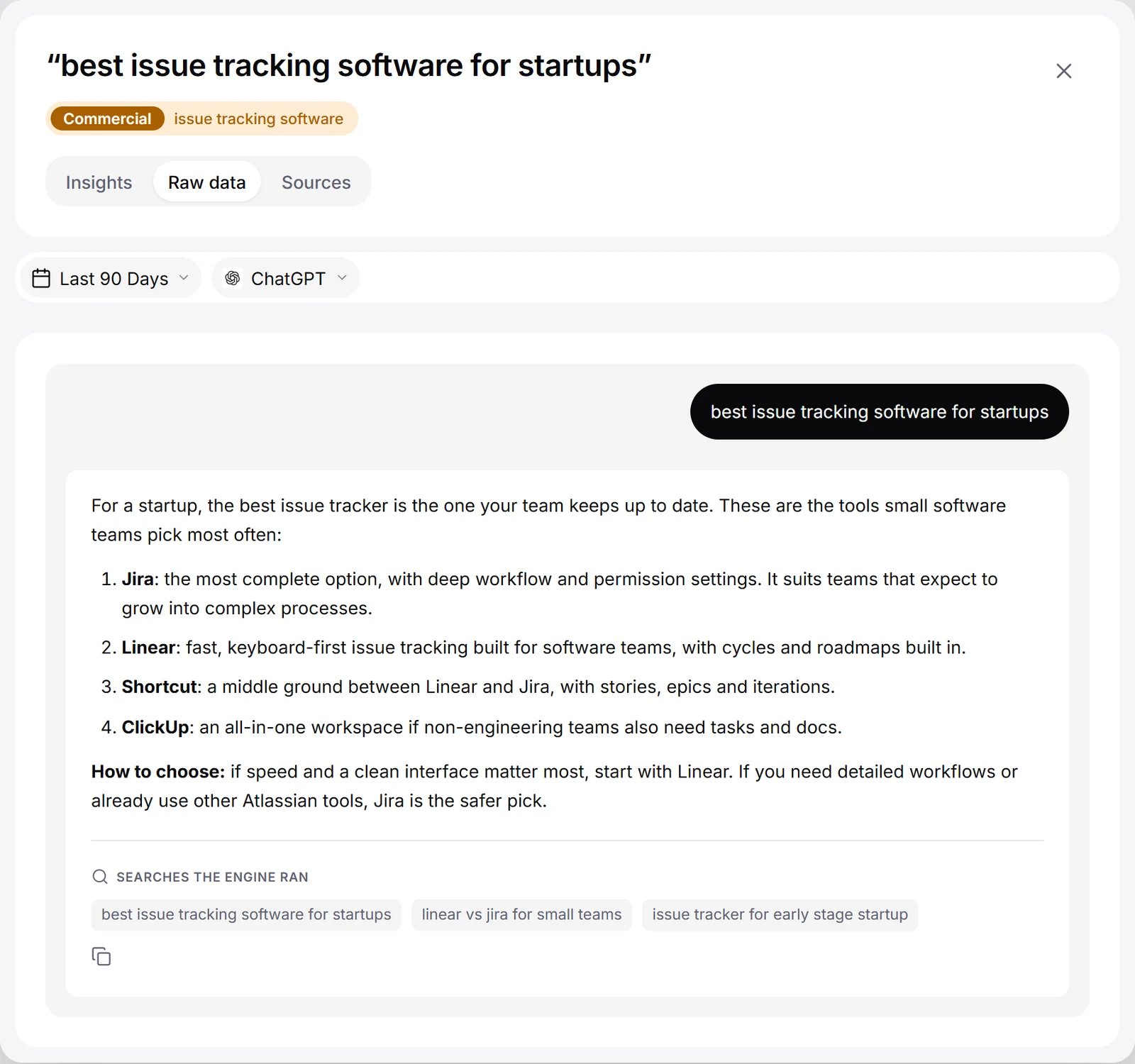
Illustration with sample data