

Engines you can track
Most engines are asked from the country set in Settings > Brand profile > Market and language, when that engine supports the country. Google AI Mode also gets the language.
How many engines your plan includes
On plans that include all 5, every run uses all of them and there is nothing to choose. On agency plans each engine you turn on uses daily credits, so the choice affects how many prompts you can run. See Agency accounts.
Choose your engines
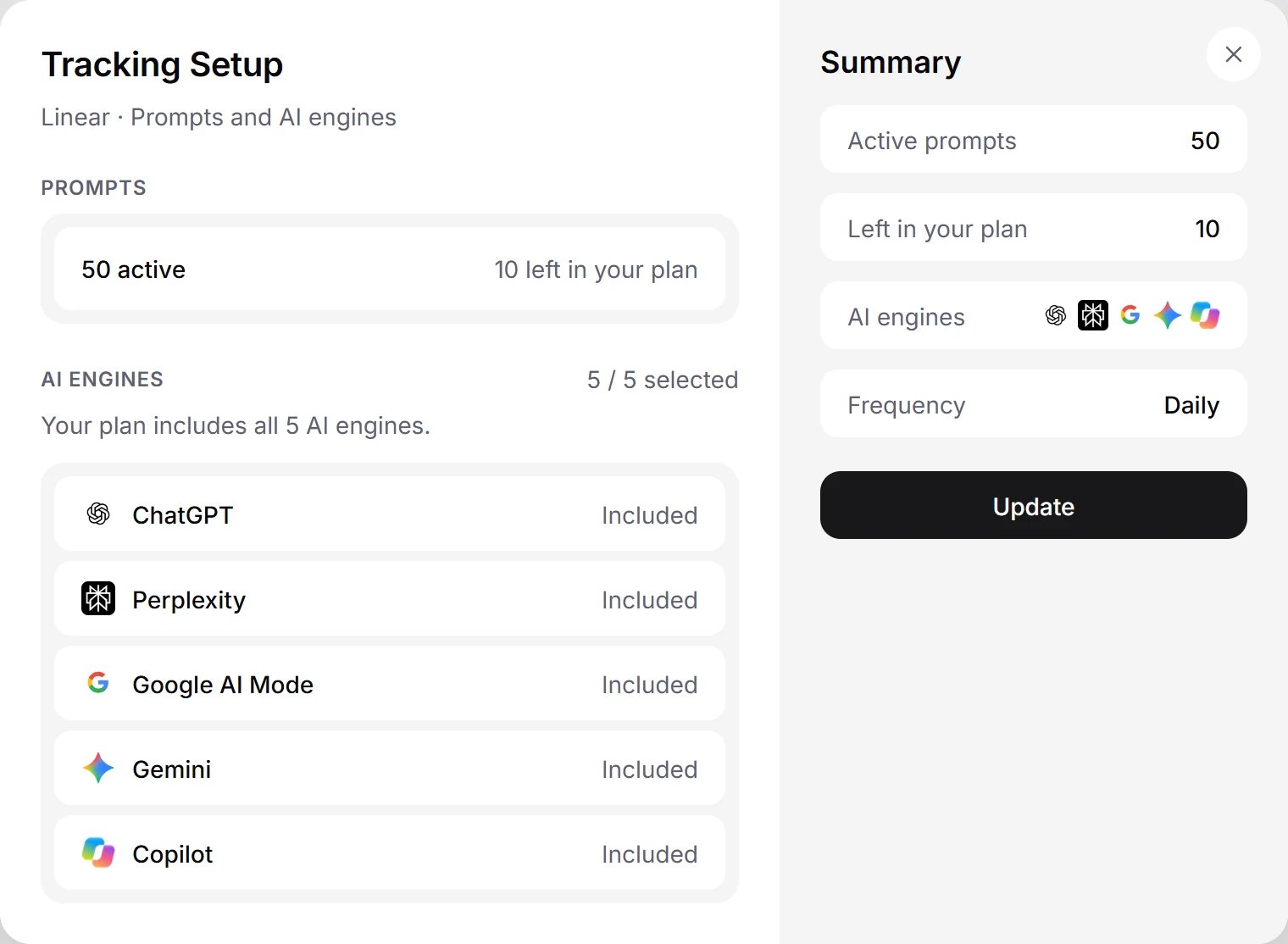
Illustration with sample data
1
Open Projects
Go to Settings > Projects.
2
Open Tracking setup
Click the engines in the brand’s AI engines column, or open the row menu and choose Tracking setup.
3
Switch engines on or off
Under AI engines, switch each engine on or off. The counter shows how many you selected out of your plan’s limit. The Summary on the right shows Active prompts, what is left in your plan, the engines and Frequency.
4
Save
Click Update. You need at least 1 engine. On an agency plan, Update stays off if the change needs more daily credits than you have left.
How often runs happen
Every brand runs once a day. In Settings > Projects, the Frequency column shows Daily. You do not start runs yourself: the daily run asks every Active prompt to every engine you track. The first run of a new account starts when you finish setup. After that, runs repeat every day at the same local time:- Your first brand runs every day at the time of day you created it, in your browser’s time zone at that moment.
- A brand you add later copies the run time and time zone of your newest other brand.
- The dashboard does not show the time of day, and you cannot change it. You can change the time zone, as shown below.
Set the time zone
The time zone decides which calendar day a run belongs to and the local time it runs at. Each brand has its own.1
Open Edit details
Go to Settings > Projects, open the brand’s row menu and choose Edit details.
2
Pick a time zone
Choose a value under Time zone. The same dialog also holds the brand’s Market and Language.
3
Save
Click Update. A “Project updated” message confirms it.