

Pick items for your list
1
Open Opportunities
Go to AI Visibility > Opportunities. If it says No opportunities yet, check again after your next daily run.
2
Choose what to work on
On each card, click Add to to-do to pick it, or Dismiss to hide it.
Work through your To-do list
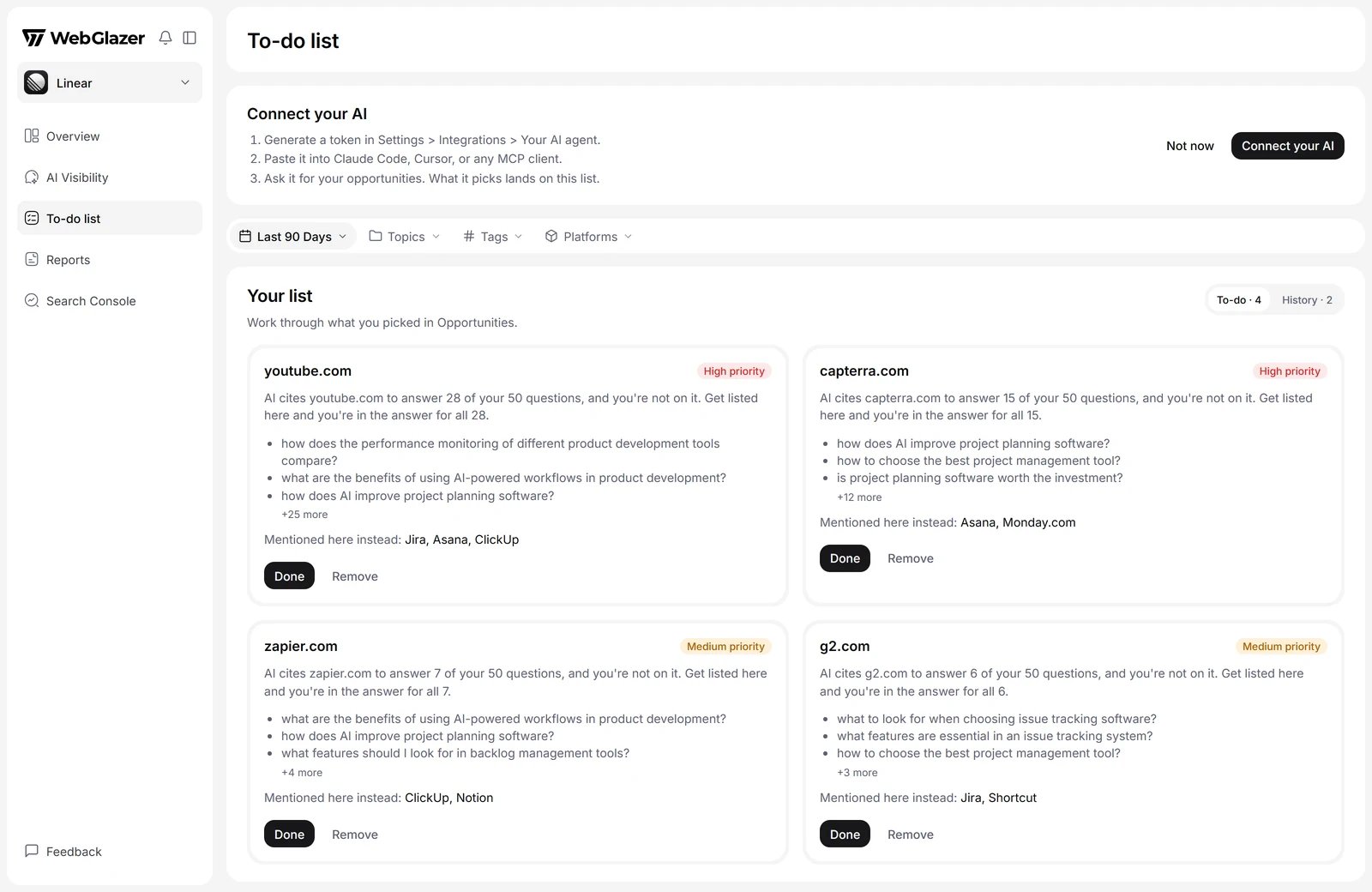
Illustration with sample data
- To-do: what you picked. Click Done when you have handled a source, or Remove to send it back to Opportunities.
- History: items marked done or dismissed. Click Reopen to put one back in Opportunities.
When a done item comes back
If a newer run still cites the source and it still does not name you after you marked it done, the item goes back to the Opportunities tab with the note “Back on your list: a newer run still shows this gap.” Pick it again to put it back on your To-do list. Dismissed items stay dismissed.Use your AI agent
The To-do list can be filled by an AI agent connected through the WebGlazer MCP server. Until you connect one, a Connect your AI card at the top explains how:- Generate a token in Settings > Integrations > Your AI agent.
- Paste it into Claude Code, Cursor, or any MCP client.
- Ask it for your opportunities. What it picks lands on this list.