

What it measures
Two answers can both name you, one as the top pick and one as “expensive and hard to set up”. Sentiment captures that difference. WebGlazer scores your own brand only. Competitors do not get a sentiment score.How it is calculated
- For each answer that names you, an AI model reads the answer, picks out the quotes about your brand and scores each one from 0 to 100, in steps of 10.
- Each answer becomes one score: the average of its quote scores, snapped to the nearest step of 10.
- Sentiment = the average of those per-answer scores, rounded half up to a whole number.
- Successful answers from the run’s selected engines.
- Answers to branded prompts count here, unlike Visibility. A question that names you still shows how AI describes you.
- Every run in the selected date range is pooled.
- Topic, tag and platform filters apply.
Example with made-up numbers. Three answers name you. Answer 1 has two quotes scored 80 and 90, so it scores 90 (85 snapped up). Answer 2 has one quote scored 60. Answer 3 has one quote scored 70. Sentiment = (90 + 60 + 70) ÷ 3 = 73.3, shown as 73, which is Positive.
Category scores on the Sentiment tab
The Sentiment tab also scores each category (for example Pricing & Value or Support & Service). Each quote is tagged positive, neutral or negative. A category’s score = (positive quotes + half of neutral quotes) ÷ all quotes in the category × 100, rounded to a whole number.Example with made-up numbers. Pricing & Value has 6 positive, 2 neutral and 2 negative quotes. Score = (6 + 1) ÷ 10 × 100 = 70.
Where you see it
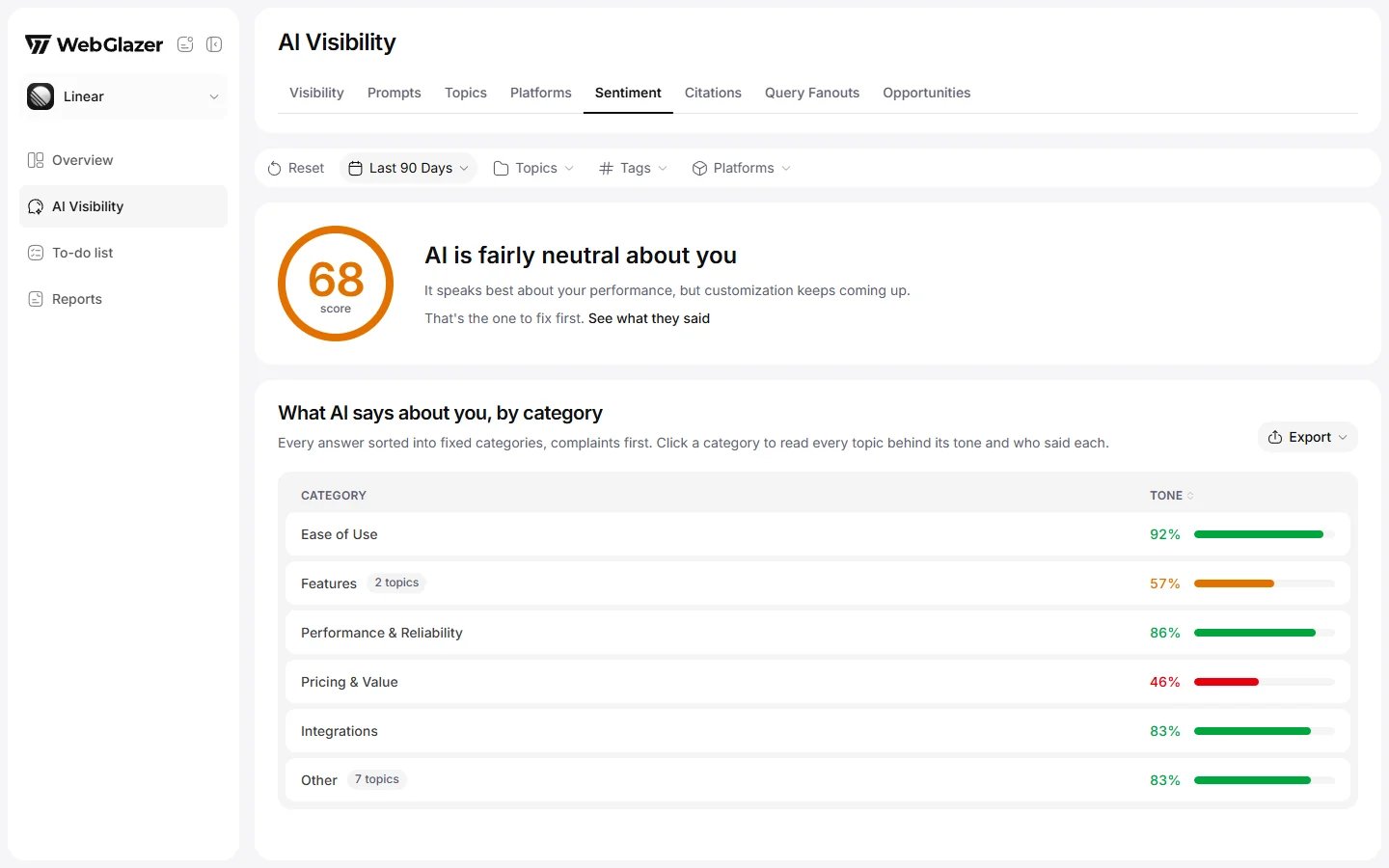
Sample data based on a linear.app project
- AI Visibility > Sentiment tab: the score ring, the summary and the category table. See Sentiment tab.
- Overview > Rankings: the Sentiment column, on your own row only.
- AI Visibility > Visibility tab: the Sentiment line in the Visibility Score chart.
- AI Visibility > Prompts tab: the Sentiment figure above the table, with a dot in the band color.
- AI Visibility > Platforms tab: the score per engine, with a bar showing the positive, neutral and negative mix.
- The prompt detail sheet: the Sentiment card.
How to read it
- Read the band before the exact number. 68 and 71 are close, but they fall in different bands.
- The change chip compares with the previous period of the same length, in points. On the Sentiment tab, a move of 3 points or more either way reads as warming up or cooling.
- With fewer than 8 scored answers, the Sentiment tab says “Still early, from just a handful of answers.” Treat the score as a first read.
- A dash means no answer in the view named you with a score.
What moves it
- What the pages AI reads say about you: reviews, comparison pages, forums and news.
- Fixing the complaint that comes up most. The Sentiment tab names it and links to the quotes behind it.
- Branded prompts. They count here, so adding questions like “Is your brand worth it?” changes the pool.