

What it measures
Visibility answers one question: when people ask AI the questions you track, how often does the answer mention you? A higher number means more answers include your brand. It says nothing about where in the answer you appear or how the answer talks about you. For that, see Mention order and Sentiment.How it is calculated
Visibility = answers that name your brand ÷ answers counted × 100, rounded half up to one decimal (for example 42.5%). Which answers count:- Only answers that came back successfully from one of the engines selected for that run. An answer that errored is left out of both sides of the division, so a failed answer never counts as “not mentioned”.
- Only answers to non-branded prompts. A branded prompt already names your brand in the question, so it is left out of visibility. Branded prompts still count for Sentiment.
- Every run in the selected date range is pooled. WebGlazer adds up the counts across all runs in the period and divides once. It never averages per-run percentages.
- Topic, tag and platform filters narrow both the top and the bottom of the division.
Example with made-up numbers. In the last 7 days, 3 runs asked your 10 non-branded prompts on 4 engines: 120 answers. 2 answers errored, so 118 answers count. Your brand is named in 47 of them. Visibility = 47 ÷ 118 × 100 = 39.8%.
- Per prompt (the ring in the Prompts table and the prompt detail sheet): a whole percent, for example 18%.
- Per engine (the Platforms tab): each engine divides by its own answers only. An engine that answered 1 prompt and named you reads 100%.
- Per topic (the Topics tab): the same rule over the answers to that topic’s prompts.
Where you see it
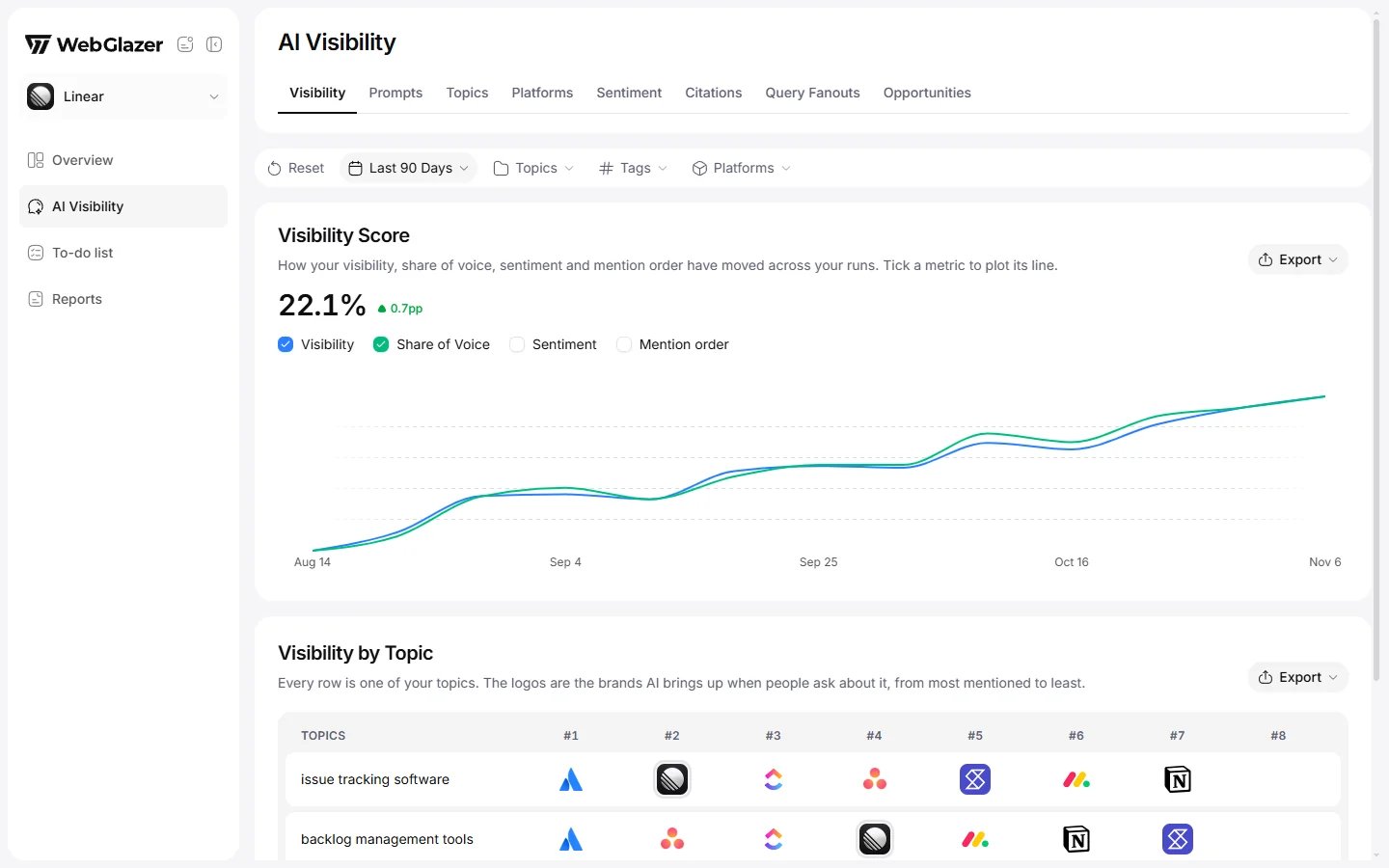
Sample data based on a linear.app project
- Overview > Visibility Over Time chart and the Visibility column of Rankings.
- AI Visibility > Visibility tab: the big number in the Visibility Score panel, and the trend line.
- AI Visibility > Prompts tab: the Visibility figure above the table and the ring next to each prompt.
- AI Visibility > Topics tab: tile shading and the Visibility column.
- AI Visibility > Platforms tab: the Visibility column, one row per engine.
- The prompt detail sheet: Visibility Over Time and the Visibility column of Top Brands.
How to read it
- Compare against your competitors in Rankings, not against 100%. Most answers name only a few brands.
- The change chip next to the number compares with the previous period of the same length (for example the 7 days before the last 7 days). It shows in percentage points (pp). On All time there is no comparison. If the previous period had no answers to compare, you see a “no comparison” note instead of a number.
- A prompt that never names you reads 0%. That is a real result, not missing data.
- Few answers make the number jumpy. A filter down to one topic and one engine can swing a lot between runs.
What moves it
- Being named on the pages AI engines cite. See Citations and the Opportunities tab.
- Having pages that answer the searches AI runs before it answers. See Query Fanouts.
- Your prompt set. Adding or archiving prompts changes which answers count.
- The engines you track. Each engine has its own visibility, and the blended number depends on which engines are selected.
- Hiding a competitor never changes how many answers count. A Viewer who removes a brand hides it from their own view only. When a Member or Company Admin removes a tracked competitor in Settings > Brands, it is removed for everyone on the project. Merging a brand into your own brand adds the answers that name it to your count.