

Open Settings
Click your name at the bottom of the sidebar and choose Settings. The sidebar switches to the Settings menu. Click Back to app to return to the page you came from. Settings has two groups:
Brand profile and Brands apply to the brand selected in the sidebar’s brand switcher. Projects, Members and Integrations cover the whole company. Some changes need the Company Admin role. If you cannot edit a field, the page says so.
Account
Agency accounts see their credit balance here. To delete your account or company, email support@webglazer.com. There is no delete button in the app.Billing & plan
Shows your plan and its renewal or trial end date, lets you add prompts or credits, change or cancel your plan, update your card and download invoices. Only a Company Admin can make changes. See Plans and billing for every step.Brand profile
Brand Profile holds what the AI knows about your brand. Your next run uses these answers.- Logo: click Upload logo or Change logo. Logos must be images under 2 MB.
- Market and language: the market and language your buyers search in. Click Edit (or Choose / Confirm if it is not set yet) to change it. New AI prompts and your next run use this. Existing prompts stay as they are. Only a Company Admin can change it.
- Description and Category.
- What you sell: your products or services. Use Add a product to add one.
- Who you sell to: your buyers.
- Question mix: sliders for Learning, Comparing and Buying. They steer prompts you add later on the Prompts page. They never change prompts you already track. The three values must add up to 100%.
Brands
Your brand and the competitors you compare against, plus Brand suggestions: brands AI named in your answers that you do not track yet. The Brands menu item shows how many suggestions are waiting. See Competitors and Brands.Projects
A table of every brand (project) you track, with its market, active prompts against your plan limit, AI engines, Frequency and creation date. Click a project’s name to switch to it.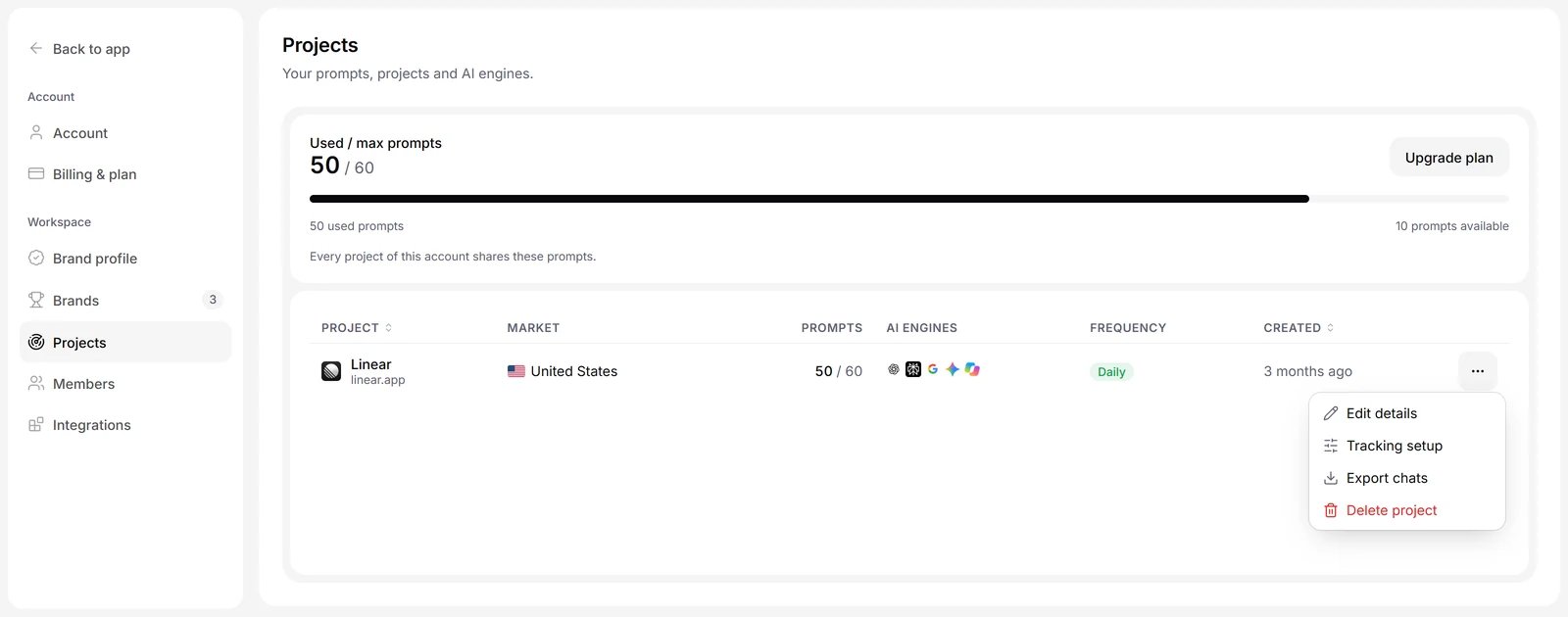
Illustration with sample data
- Click the engines to open Tracking setup, turn engines on or off, and click Update.
- The row menu has Edit details (market, language and Time zone), Tracking setup, Export chats (a CSV of the project’s AI answers) and Delete project.
- The time zone sets when daily runs happen and which date they count for. Only a Company Admin can change it.
- Deleting a project asks you to type its domain to confirm.
Members
Invite teammates, change their roles and remove access. See Team.Integrations
Integrations connects the tools that feed your prompts and the AI clients that read your results.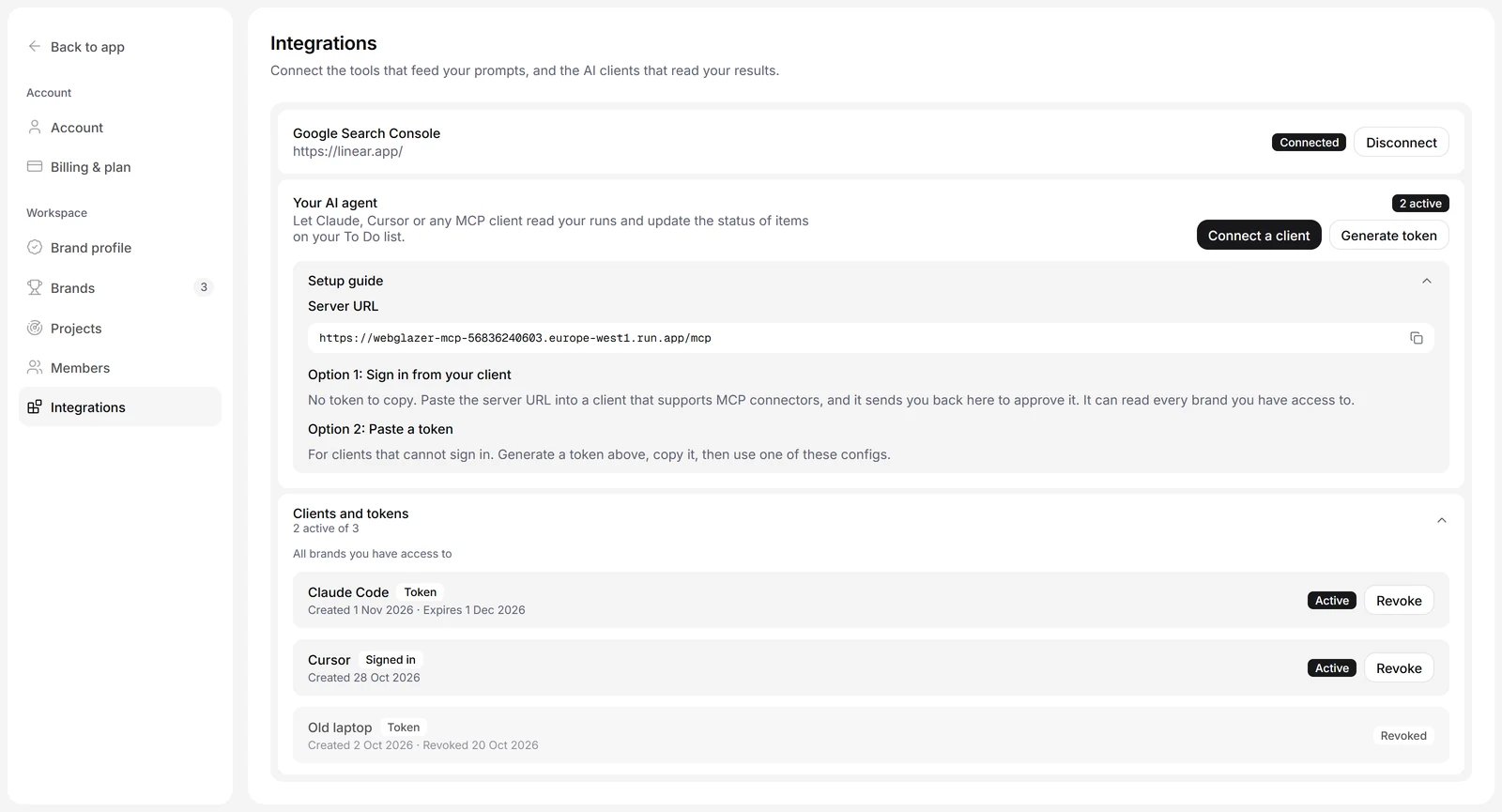
Illustration with sample data
- Google Search Console: connect Search Console to compare Google search data with AI answers and to add prompts from your real search queries. See Search Console.
- Your AI agent: connect an AI client such as Claude or Cursor to your WebGlazer data through the WebGlazer MCP server. See MCP server.