

Roles
The Owner is the person who created the company. The owner holds the subscription and has full access.
An AI agent connected through the MCP server sees only the brands that person can see.
Invite a teammate
1
Open Members
Go to Settings > Members and click Invite.
2
Pick a role
Choose Viewer, Member or Company Admin. For a Viewer or Member, tick the Projects they should reach. A Company Admin reaches every project, so there is nothing to tick.
3
Send it
Enter their Email and click Create invite. WebGlazer emails the invite, and only that email address can accept it.
Share a link instead (Viewers only)
For a Viewer, tick Create a shareable link instead (Viewer only) and click Create link. Anyone who opens the link joins as a Viewer of the selected projects. The link works once. Every invite, by email or by link, expires after 7 days.Accept an invite
- Open the link from the invite email.
- If you are not signed in, click Continue with Google, or Use email instead to sign in with email and password.
- Check which company or brands you are joining and with which role, then click Accept invite.
See and manage your team
Settings > Members lists everyone with access: each Member (email, status and whether MFA is on), their Company role and their Projects. Use Search members to filter, or the download button to export the list as CSV. Pending invites show an Invited badge.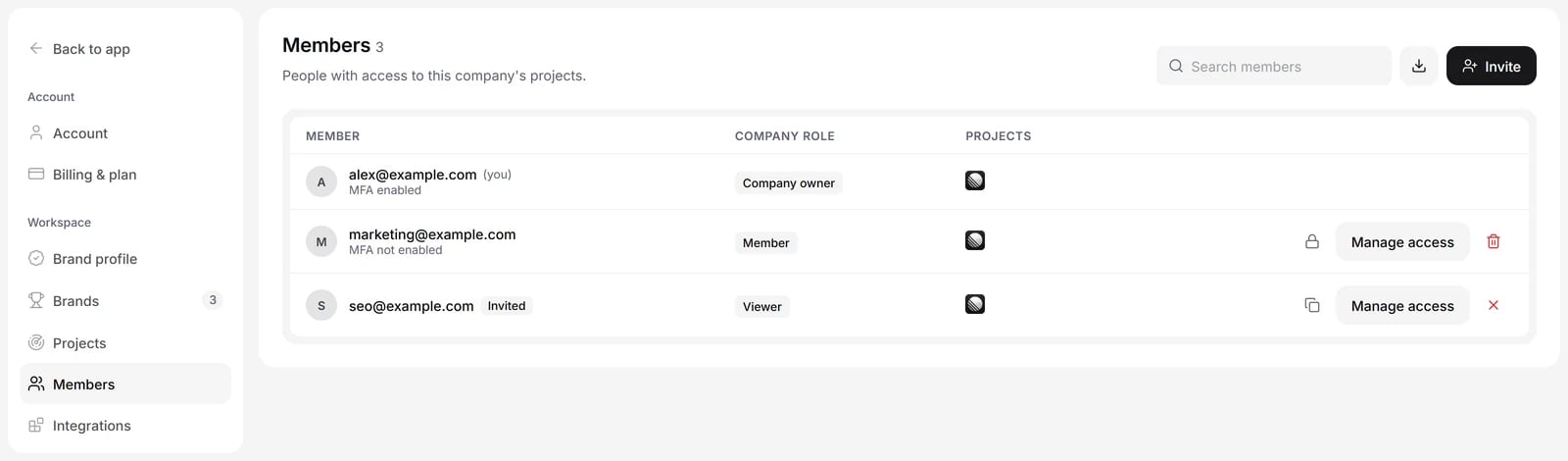
Illustration with sample data
- Manage access: change the role and the projects in Edit access.
- Copy invite link: for a pending invite.
- Suspend access and Restore access: block someone for now without removing them.
- Revoke invite: cancel an invite that was not accepted.
- Remove from company: removes the person from every project of the company. They lose access at once.